
Other articles
- Apple Ads theory: Basic vs Advanced
- Apple Ads theory: Placements
- Apple Ads theory: Campaigns
- Apple Ads theory: Ad Groups
- Apple Ads theory: Target and Negative Keywords
- Apple Ads theory: Search Terms
- Apple Ads theory: Ad Variations
- Apple Ads theory: Impression Share
- Apple Ads practice: Exact Match Campaign
- Apple Ads practice: Bidding
- Apple Ads practice: Discovery Campaign
- Income vs Cohort Income
Apple Ads theory: Search Terms
The most detailed level of pre-install data you can get in Apple Ads is the Search Terms report.
A Search Term is an actual query that user typed in a search field before your app was shown in Search Results placement. You can find the Search Terms report in Apple Ads Dashboard -> Campaign -> All Keywords -> Search Terms.
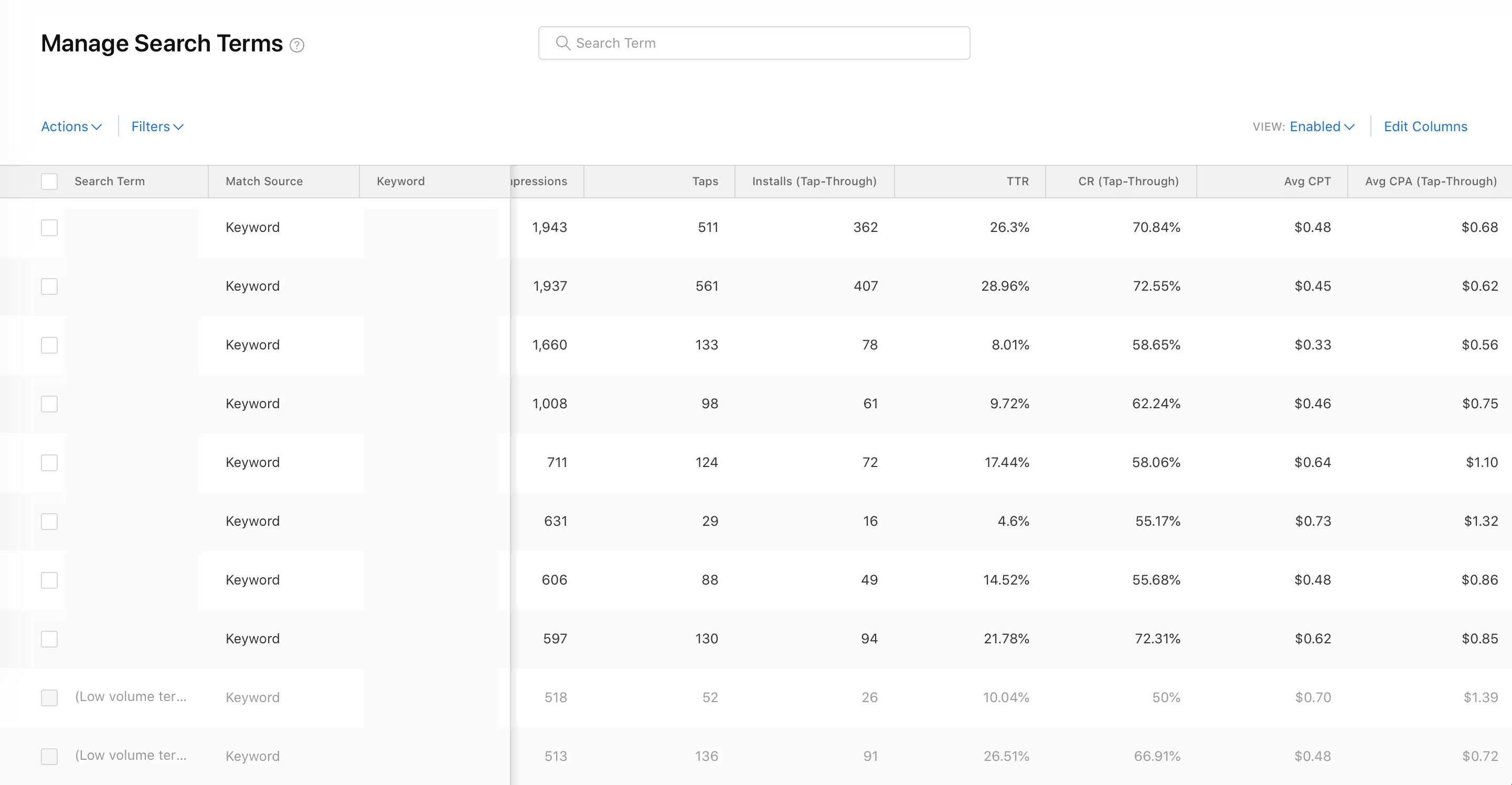
There are several columns there:
- Search Term - the actual query a user typed in the search bar. You can see "Low volume terms" for some rows. This means that each search term in that group had fewer than 10 impressions per day for the selected date range.
- Match Source - can be "Keyword" or "Search Match".
- Match Type - can be "Exact" for Exact Match Keywords, "Broad" for Broad Match Keywords, or "Auto" for "Search Match" traffic.
- Other pre-install metrics such as Spend, Impressions, Taps, Installs, TTR, CR, CPT, CPA, etc.
If you see "Search Match" as the Match Source with high spend and high CPA, it means that your search terms are coming from automatic targeting. To turn it off, open your ad group settings and uncheck "Search Match".
If you want to know what search terms are grouped in "Low volume terms", the best strategy is to raise CPT bid for the keyword they came from. With the higher CPT bid, you'll get more traffic, and some search terms in that group may exceed 10 impressions per day, allowing them to appear separately.
If you see some search terms you don't want to target, you can add negative keywords at the ad group or campaign level to block them.